

What is NSTerm
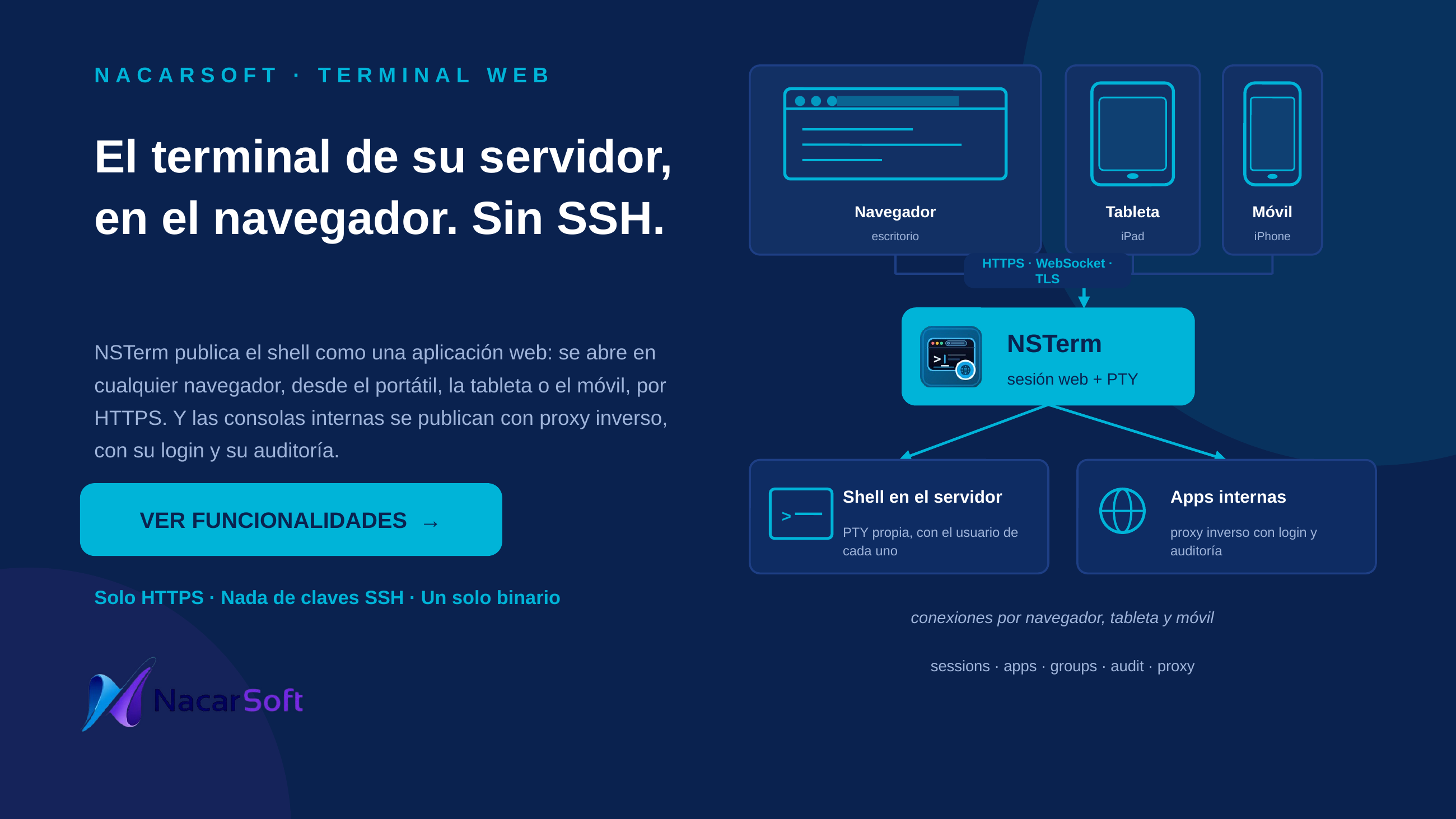
nsterm (NSTerm) is a multi-session web terminal in a single binary: administrators publish applications (a command + args + working dir + environment + size), users open them in tabbed terminals over WebSocket (xterm), and every process is tracked as a session (app, user, PID, start, duration, IP, country, browser, children; sortable table) that can be monitored and killed. Group-based access with per-user simultaneous-session quotas, audit log, and licensed with a 30-day trial.
Commands, apps, and users in the examples are fictional.
Use cases
1. Publish the corporate shell and open it in the browser
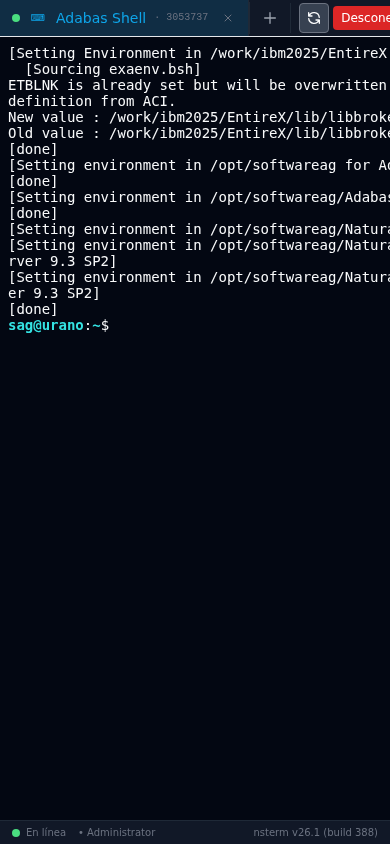
Create the shell app (/bin/bash) and open it with tabs, reconnect, and fullscreen.
nsterm init ./myterm
nsterm start --config ./myterm
nsterm status
Web flow: login → Administration → Applications → create (ID, name, command /bin/bash, args [], working dir, cols/rows, color scheme, env {"TERM":"xterm-256color"}, expand to container) → Dashboard → Open → terminal with new tab (+), reconnect, disconnect, fullscreen.
2. Give a team limited access to one app with a quota
The operators group may use prod-console with at most 2 simultaneous sessions per user.
Web flow: Users → create user → assign the operators group → Groups → assign the app to the group (max limit per user) → the user only sees their apps on the Dashboard; past the quota they get the session-limit notice.
3. Monitor and kill active sessions
See who runs what, inspect child processes, and kill a session with a reason.
Web flow: Sessions (app, user, PID, start, duration, IP, country, browser, children, sortable columns, live WebSocket updates) → Kill session (asks for a reason) → recorded in the audit log. The Dashboard shows the same active-session summary with open/kill actions: the Open button of an active session goes back to that session (the terminal reconnects to the process that is already running, without starting a new session or consuming another slot); for apps flagged to open in a browser tab, the button brings that tab to the front instead of opening another one.
4. Review who did what
Search the audit log for logins, app creations, and session kills.
Web flow: Audit Log → search/filter (time, user, action, detail, IP, country) → refresh. CLI: nsterm status and nsterm license for state and trial.
5. Publish an internal web app (proxy)
Beyond terminals, NSTerm publishes proxy apps: it exposes an internal URL (http/https) through NSTerm, inheriting login, per-group RBAC and auditing. Ideal for internal consoles without exposing them directly.
Web flow: Administration → Applications → create with Proxy URL type (target https://intranet:8443/app, WebSocket on if the app needs it, link rewriting) → assign to groups like a regular app. Security: admin-defined URLs only (users never enter URLs), host allowlist (proxy.allowedHosts), private-IP and cloud-metadata blocking (blockPrivateIPs, blockMetadataIP), body limit and response timeout.
Interface

Templates: the terminal with a web application look
Every application can carry a template: header, side containers and status bar written in HTML and CSS, with the corporate logo configured in the server settings. The result is a terminal that looks like a web application, without leaving the console.
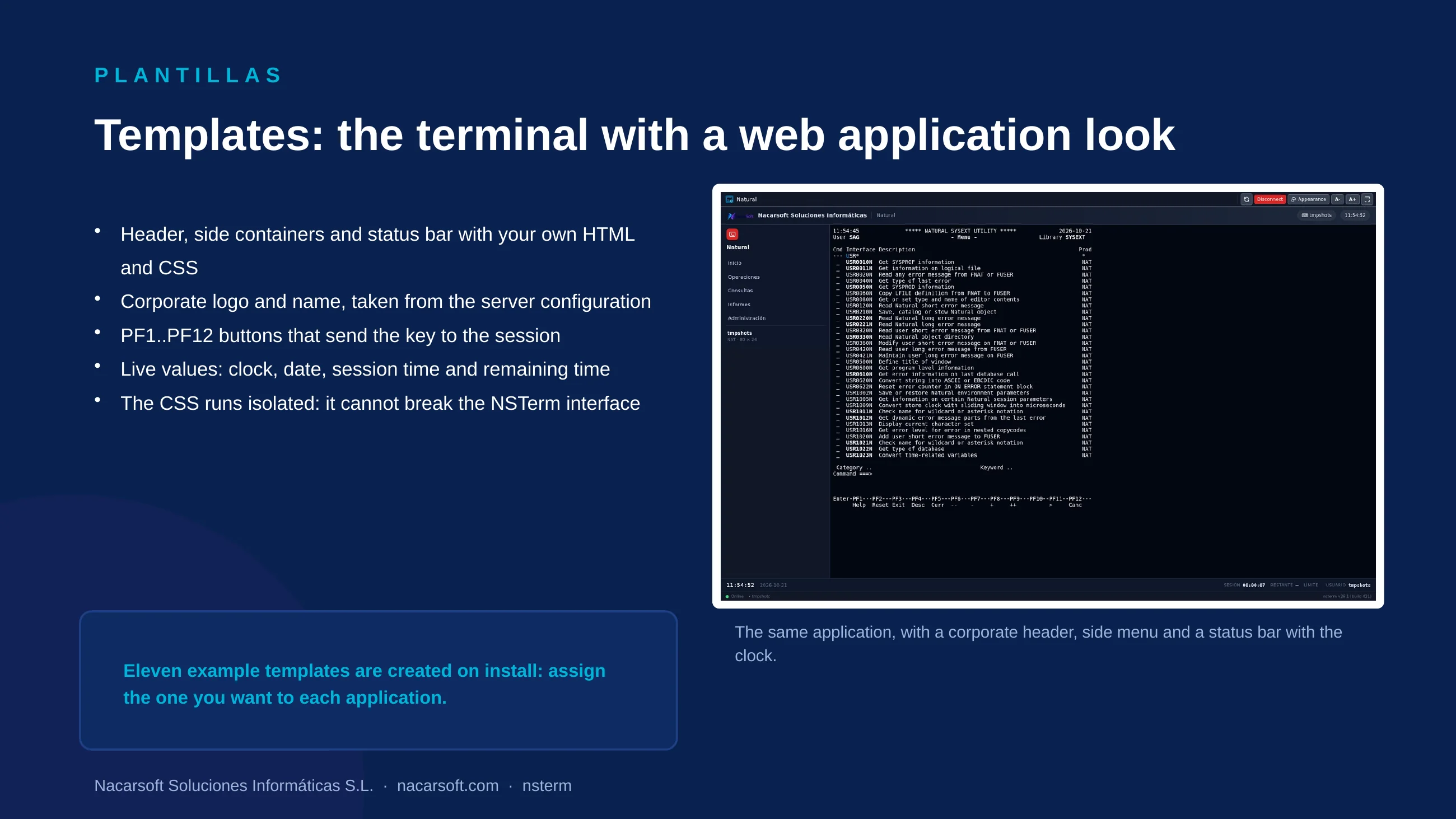
- Managed in Templates; the install creates eleven example templates (red, corporate in three tones, green, amber, with side containers, with a status bar and with PF buttons).
- The CSS runs isolated (shadow root): it cannot break the NSTerm interface nor the rest of the terminal.
- Available placeholders:
{{app.name}},{{user.name}},{{company.name}},{{company.logo}},{{pf.buttons}}and live values ({{now.time}},{{now.date}},{{session.uptime}},{{session.remaining}}). - The PF1..PF12 buttons declared by the application are drawn as buttons and send the key to the session.
Schedules: the application is only available in its window
An application can have an availability window. Outside it, the app shows as Closed on the dashboard and the server refuses the launch: console access becomes office hours.
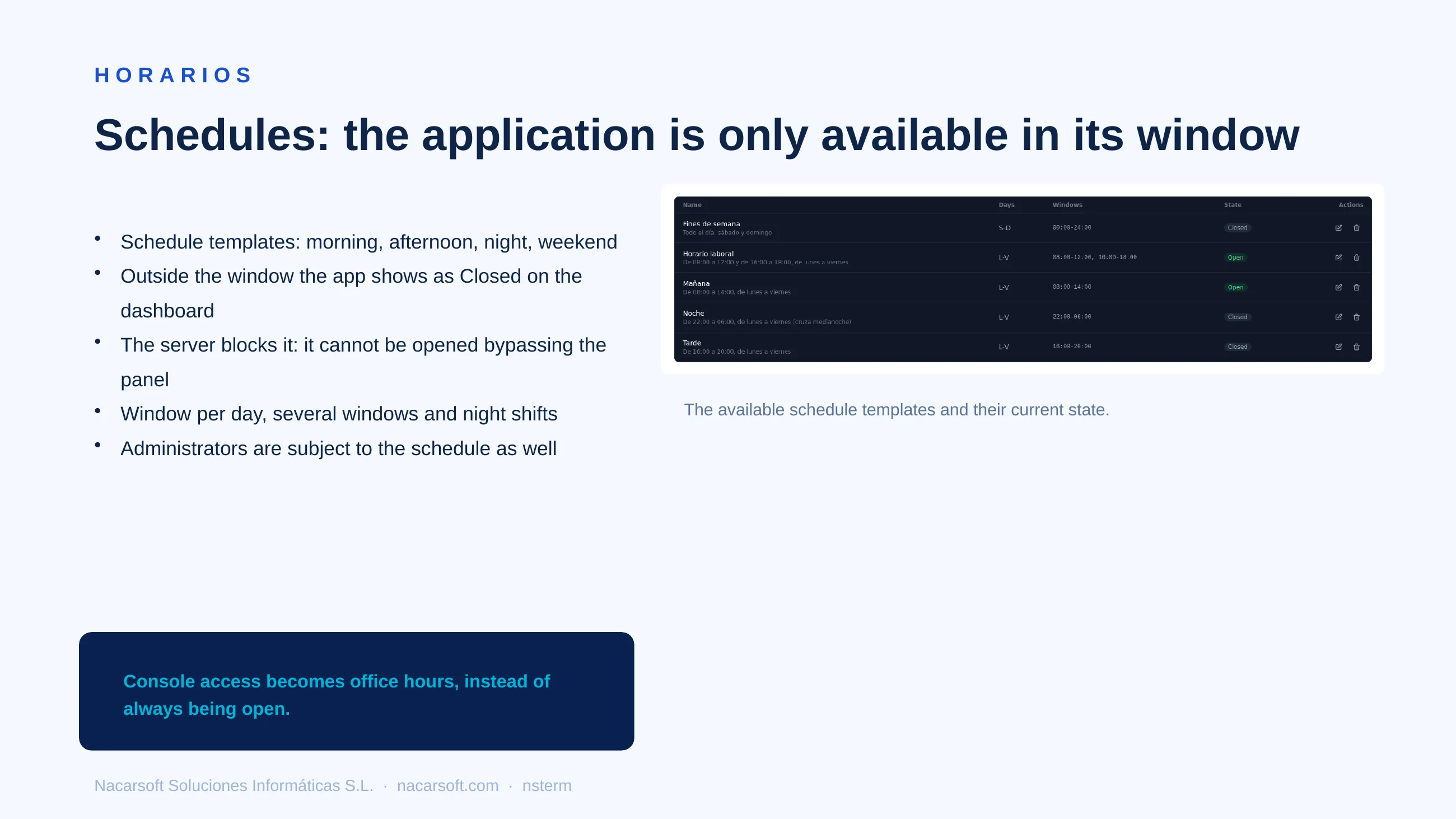
- Example templates: Morning, Afternoon, Night (crosses midnight), Weekend and Office hours (two windows).
- The window is defined per day and window, with its own timezone.
- Administrators are subject to it as well (unless explicitly exempted).
Application editor
The editor is organized in five tabs: General (identity, type, logo and colour), Execution (command, arguments, environment, timeout, system user and proxy fields), Terminal (columns, rows and geometry caps), Presentation (HTML emulation, HTML/terminal switch, application template, schedule template, design file, PF keys and open in browser tab) and Appearance (colour scheme and permission to change the appearance).
The administrator also decides what the user may do:
- HTML emulation: the application is shown as an HTML page. With Allow switching between HTML and terminal the user alternates between both views; without it, the HTML/Terminal buttons do not appear.
- The user can change the appearance: when unticked, neither the appearance nor the zoom (A- / A+) buttons are offered.
Reference
CLI commands
| Command | Description |
|---|---|
nsterm init [dir] | Creates the environment (config.yaml + db/ + logs, admin/admin123) |
nsterm start [dir] | Starts the server in the background |
nsterm stop | Stops the server |
nsterm status | Running state, PID, address |
nsterm license | License/trial status and fingerprint |
| Global flags | --config <dir> (alias: positional dir), --port N (override), --debug, --version |
There are no management subcommands: users, groups, apps, and sessions are managed from the web (/api/admin/* routes).
Main configuration (config.yaml)
| Key | Description |
|---|---|
server.host / server.port | Listen address (default 0.0.0.0:11030) |
database.path | SQLite (./db/nsterm.db) |
auth.jwtSecret / jwtExpiryMin / cookieName | Session (nsterm_session, 480 min) |
license.trialDays | Trial (30) |
logging.dir / maxSizeMB / maxAgeDays / maxBackups / compress | Log rotation (./logs, 10 MB, 30 days, 10 backups, compressed) |
proxy.enabled / allowedHosts / blockPrivateIPs / blockMetadataIP / maxBodyMB / responseTimeoutSec | Proxy apps: on/off, allowed hosts, SSRF protections and limits |
branding.companyName / branding.logoUrl | Corporate identity shown by the templates ({{company.name}}, {{company.logo}}) |
branding.customLogin | Customizes the login screen: shows the logo and the company name instead of the nsterm logo |
Web UI areas
Dashboard (available apps + active sessions) · terminals (tabs, /terminal/:appId, pre-open limit check, WebSocket /api/terminal/:appId/ws) · proxy apps (publish internal URLs with RBAC, WebSocket and link rewriting) · sessions (live list with IP/country/browser, sortable, children, kill with reason) · administration · users (create/edit, alias, groups) · groups (role, assigned apps, per-user max quota) · applications (terminal/proxy type, command, args, working dir, icon/logo, color, cols/rows, color scheme, environment, expand, active) · templates (reusable web look: header, side containers and status bar with HTML/CSS, corporate logo, PF buttons and live values; assignable to terminal apps) · schedules (availability templates: morning, afternoon, night, weekend; the app shows as Closed on the dashboard and the server blocks the launch outside its window) · audit log (search, time/user/action/detail/IP/country) · login, password recovery, themes and language (EN/ES).
Commented examples
# 1. New environment on a custom port
nsterm init /opt/nsterm-prod
nsterm start --config /opt/nsterm-prod --port 11030
nsterm status
nsterm license

# 2. Positional directory as --config alias
nsterm start /opt/nsterm-prod
nsterm stop

# 3. Temporary debug
nsterm start --config ./myterm --debug
# Pre-open check before launching a terminal (with session cookie)
curl -b cookie.txt http://localhost:11030/api/terminal/shell/check
# Active sessions via API
curl -b cookie.txt http://localhost:11030/api/sessionsFAQ
What are the first-login credentials? admin / admin123 (change after first login); further users and groups are managed via the web.
How do I limit sessions per user? In Groups → assign app → max field (0 = unlimited); past the limit the terminal shows the limit notice.
Is the kill reason recorded? Yes: killing asks for a reason, stored in the audit log with logins, app creations, and group changes.
Can I publish an internal website as well as terminals? Yes: create a Proxy URL app with its target and assign it to groups; users open it under their session (login + RBAC + auditing) with no direct access to the internal URL.
Which terminal is emulated? xterm with TERM=xterm-256color recommended in the app env; fixed cols/rows or expand-to-container (font adapts).